PDF: All Papers (except Editorials)
Attention
PDF checks are the same as HTML checks with some exceptions. This page explains the cases where PDF requirements differ from HTML checks. Please use a merge of HTML and PDF checks for PDF review. Aside from noted differences below, all elements of the HTML should match the PDF.
5. Author Notes
5.1. Check that a no space (soft return) is used between the last affiliation and the author note(s).

6. Correspondence
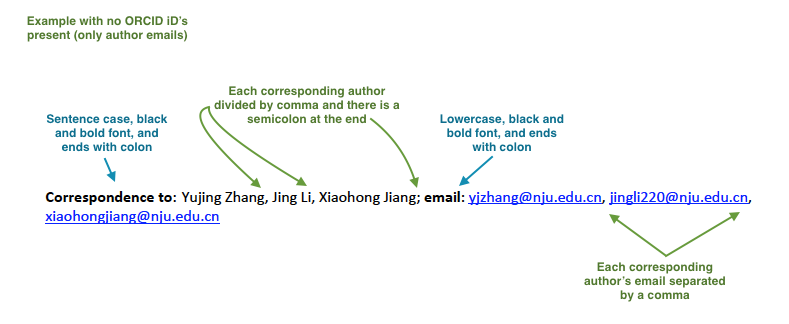
6.1. Check that correspondence section has a title “Correspondence to:” (sentence case and followed by colon (:)).
6.2. Check that “Correspondence to:” is in black and bold font.
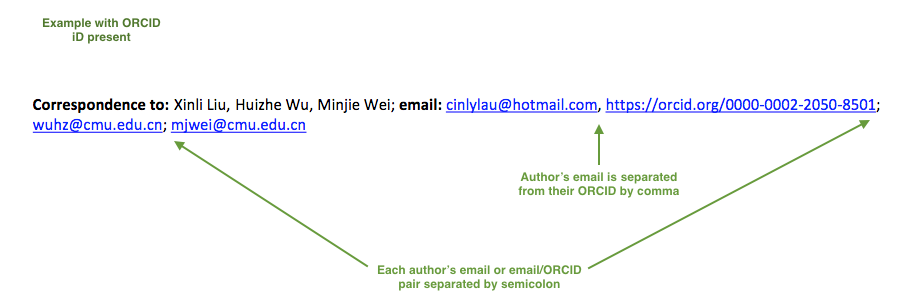
6.3. Check that “Correspondence to:” is followed by full author name. If there are a few corresponding authors, then all corresponding author full names should be listed after “Correspondence to:” and divided by comma (,).
6.4. Check that corresponding author (or list of authors) ends with a semicolon (;).
6.5. Check that the word “email:” follows the corresponding author (author list).
6.6. Check that the word “email:” is lowercase, is in black and bold font and ends with a colon (:).
6.7. Check that corresponding author email (or emails if there are a few of corresponding authors) are listed after “email:”. In the case of multiple corresponding authors, punctuation is determined whether or not an ORICD iD is present:
Only emails are present: check that each author’s email is separated by a comma (,)
ORCID is present: check that semicolons are used to distinguish each author’s email or email+ORCID pair, and a comma is used to separate an author’s email from their ORCID iD.
6.8. Check that there is no punctuation mark at the end of the last email.
7. Keywords
7.1. Check that Keywords section has a title “Keywords:” (title case and followed by colon (:)).
7.2. Check that “Keywords:” is in black and bold font.
7.3. If there are multiple keywords, check that they are divided by a comma (,).
7.4. Check that there is no punctuation mark at the end of the last keyword.
8. Abbreviations
8.1. Abbreviations should be kept underneath keywords in the Abstract section when there are 5 or less present. Please note that this is only applicable to the PDF, and abbreviations are always kept in the final sections in HTML.
8.2. Check that abbreviations section has a title “Abbreviations:”. It should start with capital letter and be followed by colon (:).
8.3. Check that “Abbreviations:” is in black and bold font.
8.4. Check that there is no punctuation mark at the end of the abbreviations line.

9. Dates
Note
Published date will only be present for Advance papers.
9.1. Check that “Received:”, “Accepted:”, “Published:” titles are present and in black and bold font.
9.2. Check that dates are separated by white space.


11. Section Headers
Note
Formatting checks for non-standard headings (including all types of subheaders) for Reviews and Research Perspectives should be skipped until further notice. Still check for spelling and grammatical errors.
11.1. All main section headers should be formatted in ALL CAPS, blue and bold font. A few examples below:
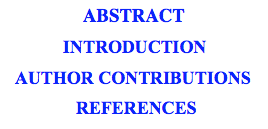
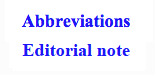
Abbreviations and Editorial note sections are exceptions. They should be formatted in sentence case and in blue and bold font.
Free-style main sections in Reviews and Research Perspectives are an exception. These should be formatted in sentence case and blue font.
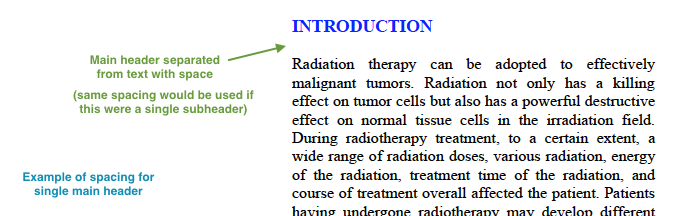
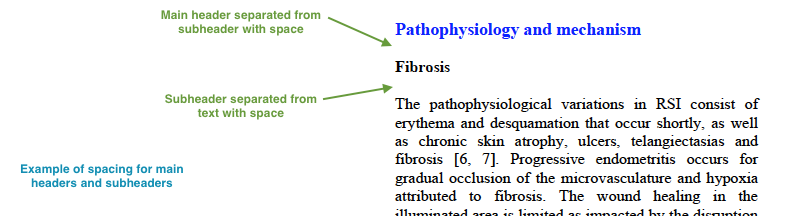
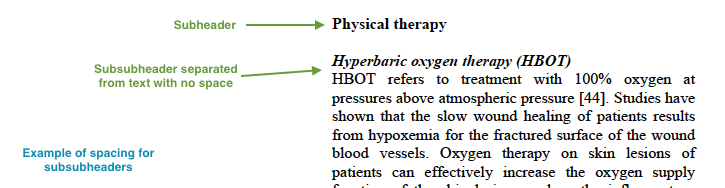
11.2. Check the spacing of all headers in the article:
Main headers and subheaders are separated from the following text (or header, when in succession) with a space (hard return).
Subsubheaders are separated from the following text with no space (soft return).
12. Text
12.1. Check that font type and size is consistent across all sections (except for References) of the article.
12.2. Check that links are hyperlinked in blue color and underlined font.

13. Figures
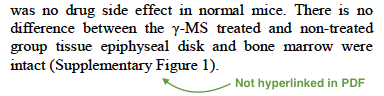
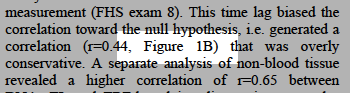
13.1. Check that callouts are formatted in plain text and are not hyperlinked.
13.2. Check placement of figures in the text:
Figures should be positioned at the bottom of the page when not occupying a full page in PDF.
In rare instances a figure legend may extend to the top of the following page due to spatial limitations. This is OK, but please check with production to make sure the legend cannot be made to fit on the same page as the figure.
Each figure should be placed after its first callout except when it’s not possible due to limitations of what can fit on one page and the size of figures and tables that are called out around each other.
14. Tables
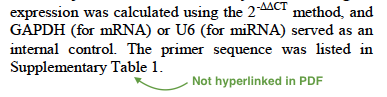
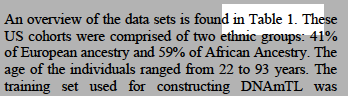
14.1. Check that callouts are formatted in plain text and are not hyperlinked.
14.2. Check placement of tables in the text:
Tables should be positioned at the top of the page when not occupying a full page in PDF.
Each table should be placed after its first callout except when it’s not possible due to limitations of what can fit on one page and the size of figures and tables that are called out around each other.
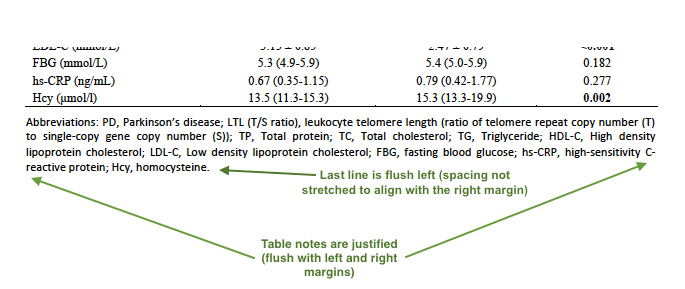
14.3. Check that table notes are presented in justified, plain text.
Please note that a single line of text as well as the last line of a justified paragraph will technically be flush left.
Authors are allowed to distribute table notes across separate lines, and there is no need to join these into a single justified paragraph unless there is apparent evidence that it has been formatted this way by error.

15. Reference Callouts
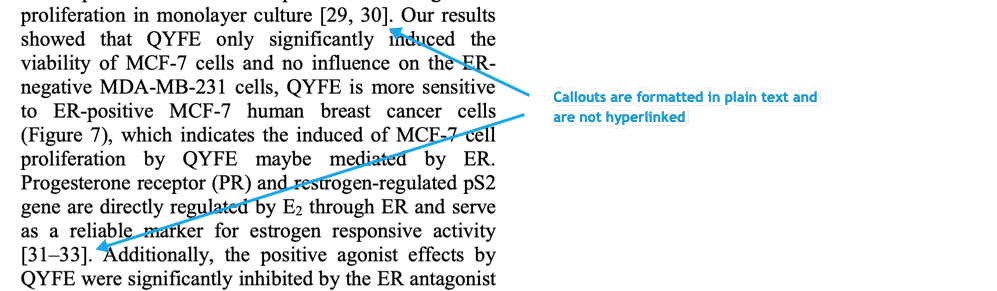
15.1. Check that callouts are formatted in plain text and are not hyperlinked.
16. References
Attention
Font of the references differs from rest of the article. This is OK.
16.3. Citation-Data (in-house)
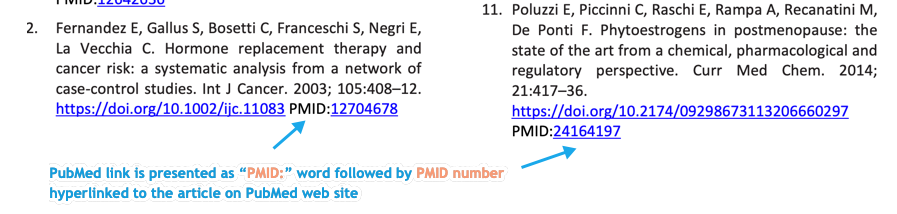
16.3.1. Check that [PubMed] link is presented in PDF as “PMID:” word followed by hyperlinked PMID number.
16.3.2. Check that “PMID:” word is written in ALL CAPS and formatted as plain text (no special formatting) and has a colon (:) at the end.
16.3.3. Check that PMID number is hyperlinked to the PMID website.
16.4. Citation-Data (other journals)
16.4.1. Check that [PubMed] link is presented in PDF as “PMID:” word followed by hyperlinked PMID number.
16.4.2. Check that “PMID:” word is written in ALL CAPS and formatted as plain text (no special formatting) and has a colon (:) at the end.
16.4.3. Check that PMID number is hyperlinked to the PMID website.
17. Supplementary Materials
Note
Supplementary materials are located in two places:
HTML page (after Materials and Methods section) - All supplementary materials are available here as separate downloads.
PDF of the main manuscript (after References) - All supplementary materials that can be placed in a PDF are available here. Any materials that cannot fit in PDF due to formatting or size will have callouts to the HTML where they can be downloaded and viewed.
This check is for the supplementary materials in the PDF. Checks for supplementary materials downloads in the HTML can be found here.
Important
An average of about 10 pages is the combined total limit for tables and figures to occupy in the PDF. Excessive amounts of either or both should be removed from the PDF and callouts to HTML added in their place. The figures and tables can be seen as two separate units when determining what to remove. Remove all of either or both depending on how many pages each unit is taking up.
Supplementary materials should be located after the references of the main MS in the PDF.
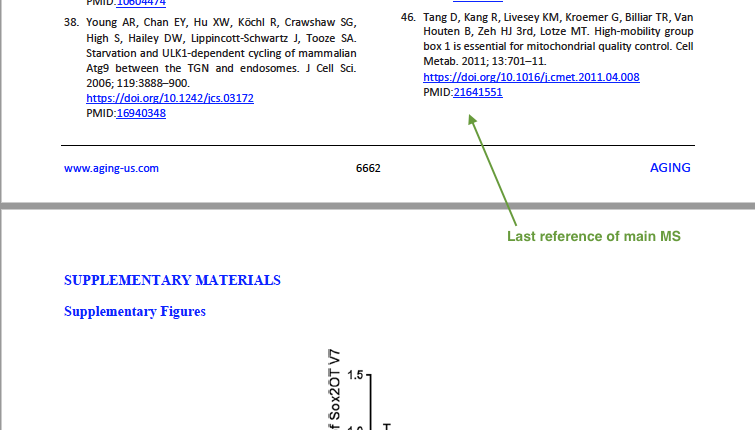
Check to make sure that all supplementary materials in the PDF match what we have on the website.
17.1. Title and Footer
17.1.1. Main Title
Main title should appear at the top of the first page of the supplementary materials and should appear as SUPPLEMENTARY MATERIALS - ALL CAPS, blue and bold font (always kept plural).

17.1.2. Supplementary Figures
When multiple figures are present, title should be Supplementary Figures - Title case, blue and bold font.

When only a single figure is present, title should be Supplementary Figure - Title case, blue and bold font.

17.1.3. Supplementary Tables
When multiple tables are present, title should be Supplementary Tables - Title case, blue and bold font.

When only a single table is present, title should be Supplementary Table - Title case, blue and bold font.

17.1.4. Supplementary References
Title should be Supplementary References - Title case, blue and bold font.

17.1.5. Supplementary Materials
Title should be Supplementary Materials - Title case, blue and bold font. This heading is used for any supplementary information, methods, etc. and should not be confused with the main SUPPLEMENTARY MATERIALS title referred to in 17.1.1.

17.1.6. Footer
Not applicable to PDF check - Numbered footers will most likely be present, but these will be renumbered to accord with issue page numbers and checked in the next stage of publishing.
17.2. Text
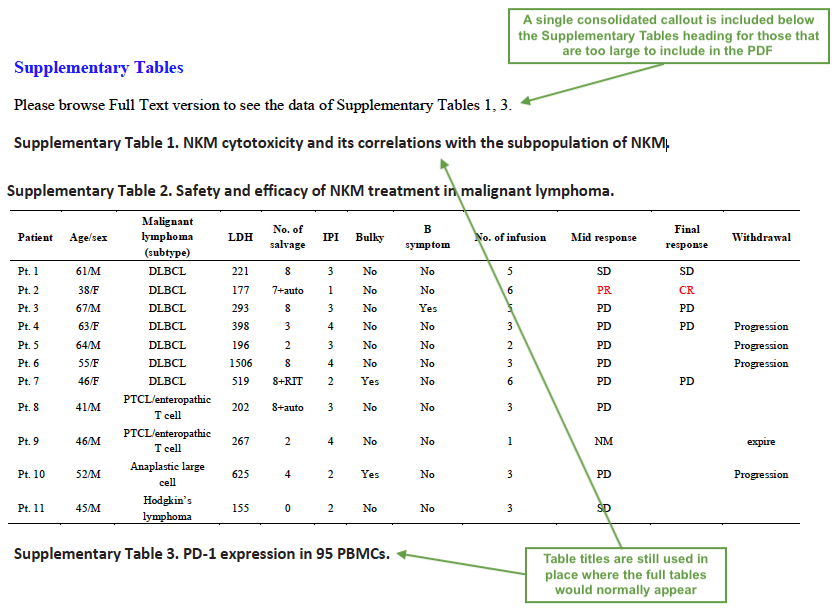
17.2.1. Check that there are callouts to any external supplementary files (e.g. tables, videos, etc.) that cannot not be included in the PDF due to size or format.
A single consolidated callout for each type of supplementary materials should appear below its associated section heading (one for tables, one for figures, etc.).
We only use these callouts in the PDF, not the external files.
Callout text should be “Please browse Full Text version to see the data of…”
The applicable title should still be used in place of where the missing materials would normally appear.